User Manual & Guide
Complete operational guide for Edgkonnect mission-critical Push-to-Talk devices. Learn setup, operation, and maintenance.
Cellular Network
Waterproof & Dustproof
Mission-Ready
Device Specifications
Complete overview of your PTT device components and specifications
| Model | MCPT-1-XC |
| Network | LTE / 4G Cellular |
| Connectivity | Pre-installed Edgkonnect embedded SIM |
| IP Rating | IP68 (Waterproof & Dustproof) |
| Charging | USB-C |
| Optional Accessories | Earpiece, Desktop Charger |
| Design | Complete solution designed for mission-critical operations |
Front Panel Controls
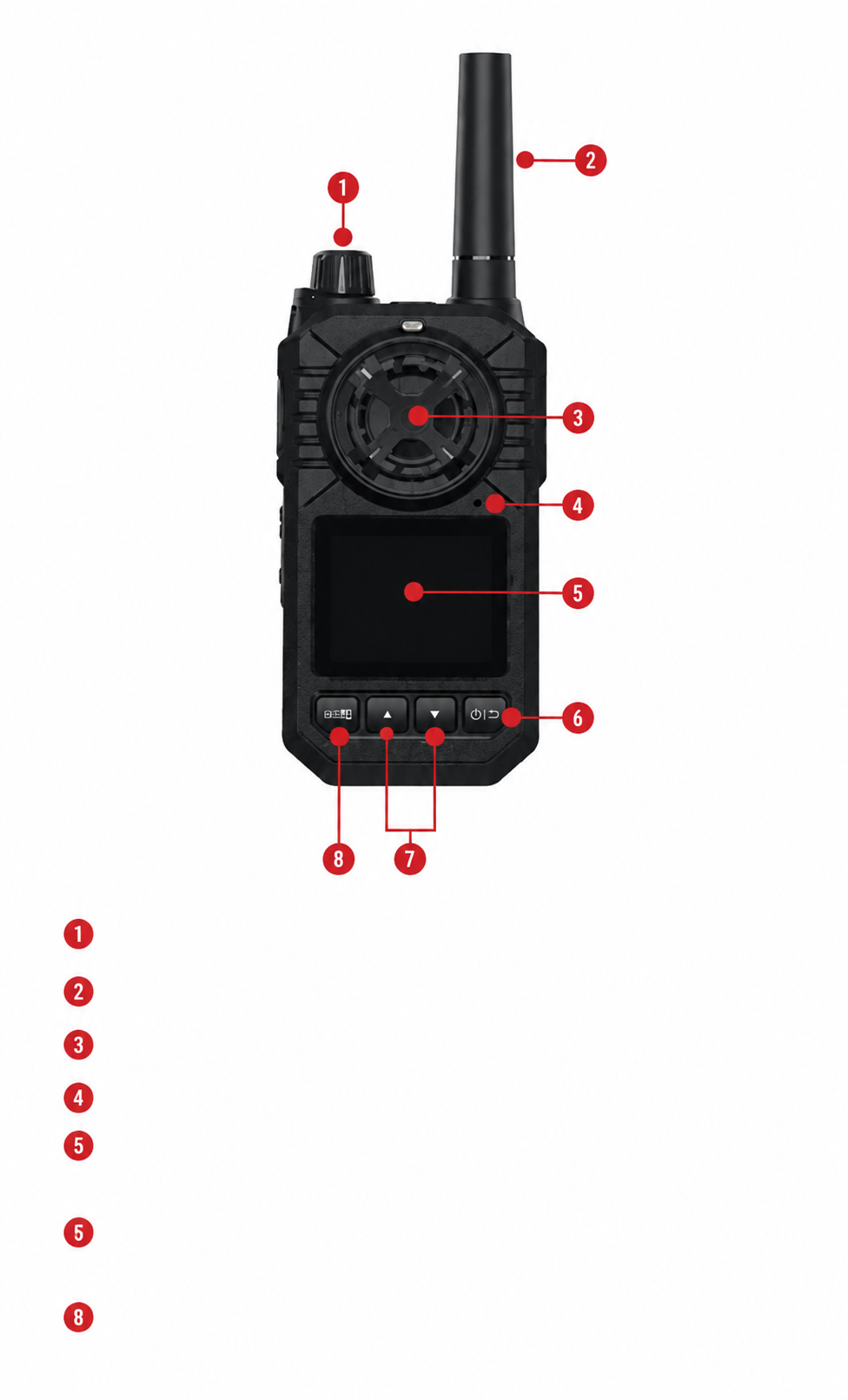
Rotary Knob
Rotate to switch between groups
Antenna
—
Speaker
Built-in speaker for audio output
Microphone
Built-in microphone for voice input
Display
Screen showing status and user information
Power On/Off Key
Hold for 3 seconds to turn on/off. Wakes screen from sleep mode. Sleep timer is 5 minutes by default.
User Navigation Keys
Press Up/Down to navigate and select individual users for 1-to-1 calls.
Back to Group Call
Returns to group call after a 1-to-1 call.
Side & Port Controls
Earpiece Port
3.5mm port. Connect optional earpiece (sold separately).
Charger Input (USB-C)
USB-C charging port for the device.
PTT (Push-to-Talk)
Hold button to start speaking; release when finished.
Volume Up
Increases audio volume.
Volume Down
Decreases audio volume.
SOS Button
Sends SOS alert to App-Based Mobile Dispatcher or Mission Critical Group Communication Windows Dispatcher.
Port for Desktop Charger
Desktop charger is an optional accessory, sold separately.
Getting Started
Setup your PTT device in three simple steps
Important Note
Do NOT insert a SIM card into the device. Your Edgkonnect PTT system comes with a pre-installed embedded SIM providing full connectivity out of the box.
Attaching the Antenna
- 1Align the bottom of the antenna with the screw-in base on top of the PTT device.
- 2Turn clockwise until snug. Do not force the antenna.
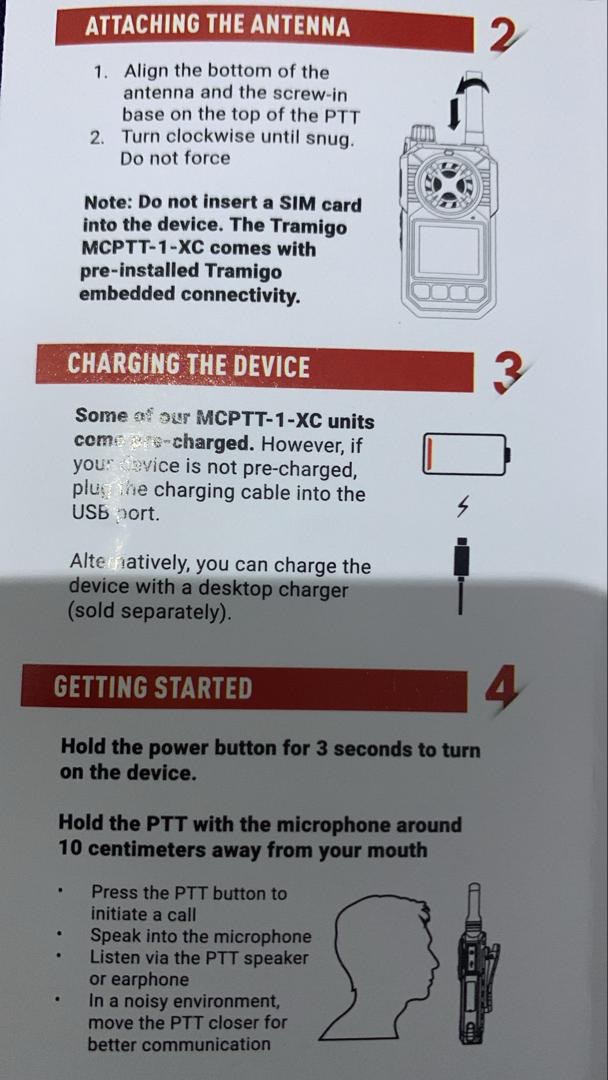
Charging the Device
Some Edgkonnect PTT units come pre-charged. However, if your device is not pre-charged:
- 1Plug the USB-C charging cable into the USB-C port on the device.
- 2Alternatively, use a desktop charger (sold separately).
For optimal performance, charge for at least 30 minutes before first use.
USB-C Charging Port
Getting Started – Powering On
Initial Setup
- 1Hold the power button for 3 seconds to turn on the device.
- 2Wait for the device to initialize and connect to the network.
- 3You're ready to communicate!
Optimal Operation
- 1Hold the PTT with the microphone approximately 10 centimeters away from your mouth.
- 2Press the PTT button to initiate a call.
- 3Speak clearly at normal volume for best audio clarity.
Device Operations
Learn how to make calls, switch groups, and use emergency functions
One-to-One PTT Calls
Initiate direct calls with individual users. This is a simple PTT session involving just one caller and one recipient.
Locate Groups
At the main menu, locate groups by rotating the knob. Users are shown at the bottom window of the display as usernames.
Scroll Users
Use the navigation keys (Up/Down) to scroll the user list.
Initiate Call
Press the PTT button to start a one-to-one call with the selected individual.
Adjust Volume
Press the Volume +/- button to adjust the audio volume level.
Return to Group
Press the OK button to go back to the group interface.
Switching Between Groups
Rotate the Rotary Knob (Control #1) to cycle through available groups. The current group name will be displayed on screen. After a 1-to-1 call, press the Back to Group Call button (#8) to return to group communications.
Emergency SOS Function
SOS Button (#14)
Press the SOS button to immediately send an SOS alert to the App-Based Mobile Dispatcher or Mission Critical Group Communication Windows Dispatcher. Use only in genuine emergencies. This action will override normal operations and prioritize your emergency communication.
Emergency alerts are always transmitted with the highest priority and encryption level.
Battery, Storage & Maintenance
Extend device lifespan and maintain optimal performance
Battery & Screen Management
Screen Sleep Mode
The PTT device screen will automatically go to sleep mode after 5 minutes of inactivity. This helps conserve battery power and extend operational hours.
- ✓Press power button to wake the screen
- ✓Device remains fully operational with screen off
- ✓Significantly extends battery life
Optimized Battery Performance
Storage & Environmental Precautions
Temperature
Never leave your Edgkonnect PTT device or its battery in extreme temperatures (above +85°C), such as behind a windscreen in direct sunlight.
Cleaning
To clean your device, use a moistened or antistatic cloth. Do not use solvents or abrasive cleaners.
Water Resistance
The device carries an IP68 rating, meaning it is waterproof and dustproof under standard testing conditions. Avoid exposing charging ports to water.
SIM Card
Do NOT insert a third-party SIM card. The device uses a pre-installed Edgkonnect embedded SIM. Inserting a SIM may damage the device and void the warranty.
Daily Care Instructions
Handling
- •Handle with care to avoid drops
- •Use protective case when not in use
- •Avoid impact with hard surfaces
Storage
- •Store in cool, dry environment
- •Charge monthly to maintain battery health
- •Keep away from moisture
Cleaning
- •Use soft, damp cloth only
- •Never use harsh chemicals
- •Dry thoroughly after cleaning
Troubleshooting & Support
Quick solutions to common issues and when to contact support
Common Issues & Solutions
Device won't turn on
Possible Cause
Battery depleted
Solution
Charge via USB-C for at least 30 minutes before attempting to power on.
No audio / poor sound
Possible Cause
Low volume or PTT held incorrectly
Solution
Press Volume Up (#12). Hold PTT ~10 cm from mouth. Use earpiece if needed.
Screen is blank
Possible Cause
Sleep mode active
Solution
Press the Power button briefly to wake the screen.
Cannot connect to group
Possible Cause
Network / SIM issue
Solution
Ensure you are in an LTE coverage area. Contact support@edgkonnect.com.
SOS not sending
Possible Cause
Out of range or dispatcher offline
Solution
Confirm LTE signal and dispatcher status. Contact support if issue persists.
Device overheating
Possible Cause
Extreme ambient temperature
Solution
Move to a cooler environment. Never leave in direct sunlight (>85°C).
Need More Help?
Response Time
We aim to respond to all inquiries within 24 hours during business days.
Before You Contact Support
- ✓Verify you have LTE/4G signal coverage
- ✓Check that the device is fully charged
- ✓Restart the device by powering off and on
- ✓Verify you are within a group and not blocked